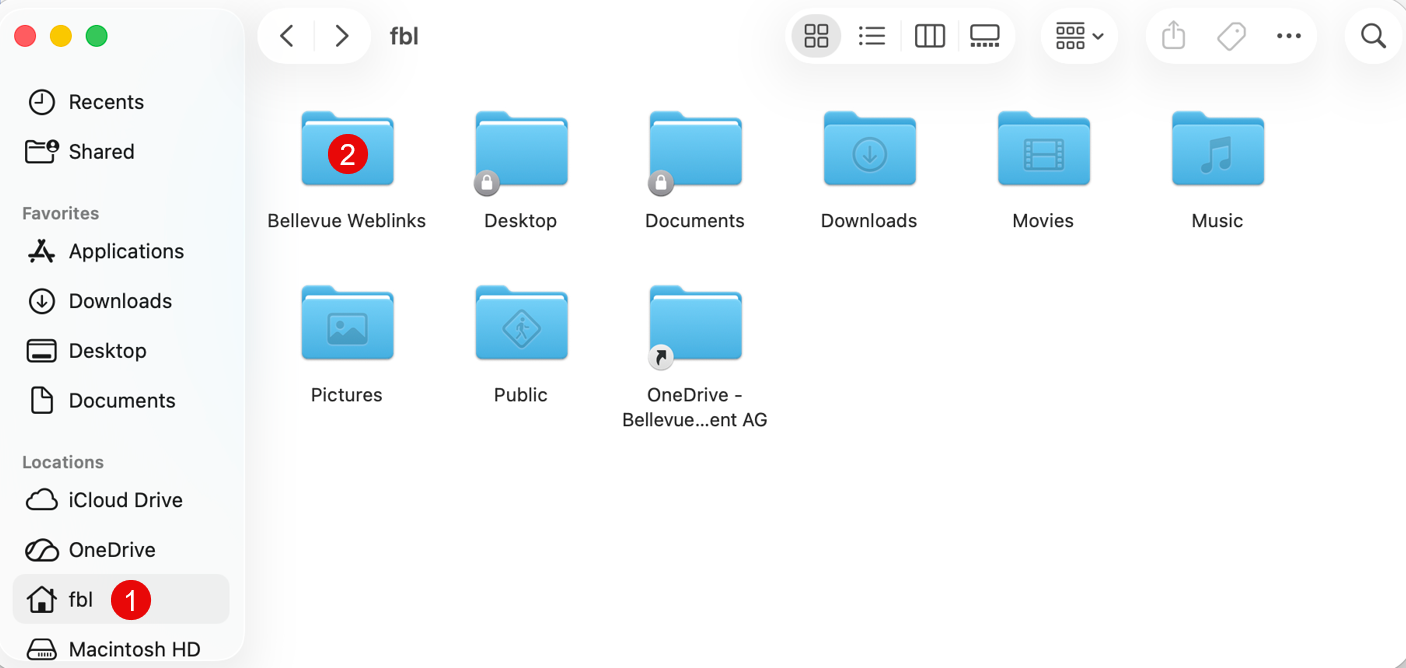
Links to Bellevue applications can be opened via "Finder":
Commands: - Open search bar: Command + Spacebar - Open Task Manager (Force Quit): Command + Option + Escape - Open folder in Finder: Command + Shift + G > Enter folder path (eg, /Users/shared) - Take a screenshot: Command + Shift + 4 - Screen Lock: Control + Command + Q - Backslash: Option + Shift + 7
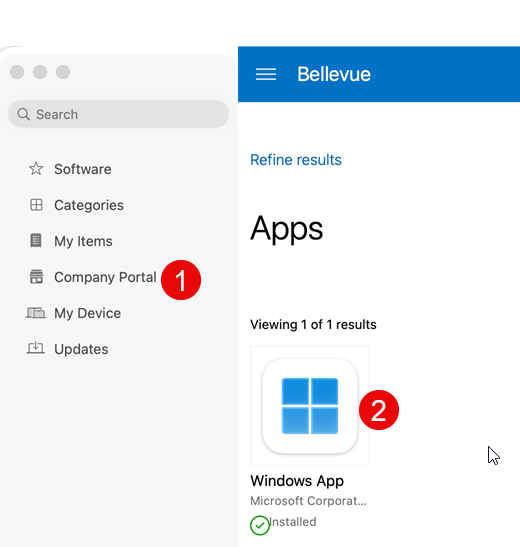
Remote Desktop connection (using "Windows App") to Windows devices in the Bellevue Datacenter - Install "Windows App" via Package Hub - Company Portal: - Then open the "Windows App" - Add device for remote connection using + (top right) -> Add PC - PC Name: %pcname% .intra.bellevuegroup.ch / Credentials: intra\%username% -> Remote connections from corporate laptops to the Bellevue data center must be configured in advance by Bellevue IT (GSA)