Manage browser favorites

Sync favorites with user account
Microsoft Edge
- Log in to Edge with your Bellevue account
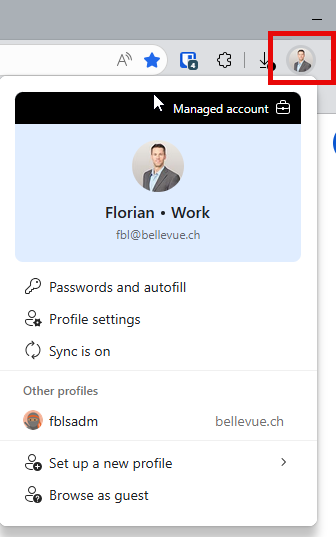
- In Edge settings (-> Profiles / Sync), activate Favorites Sync (and possibly others).
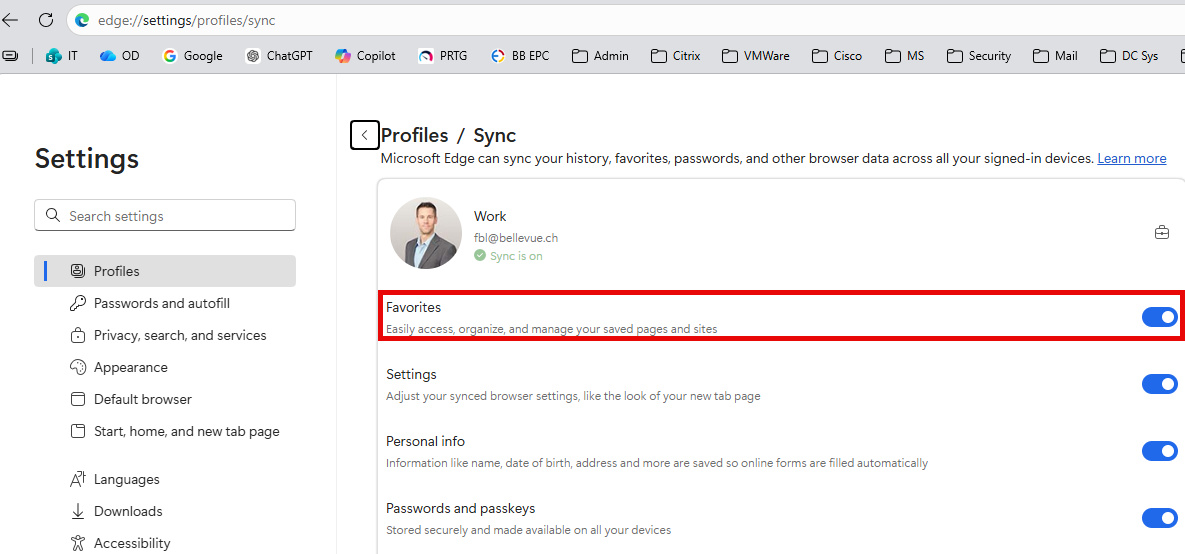
- Favorites will now be displayed on all devices in Edge if they are logged in with the Bellevue account.
-> It is not absolutely necessary to use the Bellevue account.
Google Chrome
- Log in to Chrome with your Bellevue account
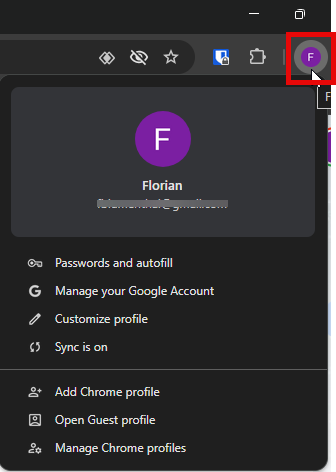
- In Chrome settings (-> enter "Sync" in the settings search), activate Bookmarks Sync (and possibly other bookmarks).
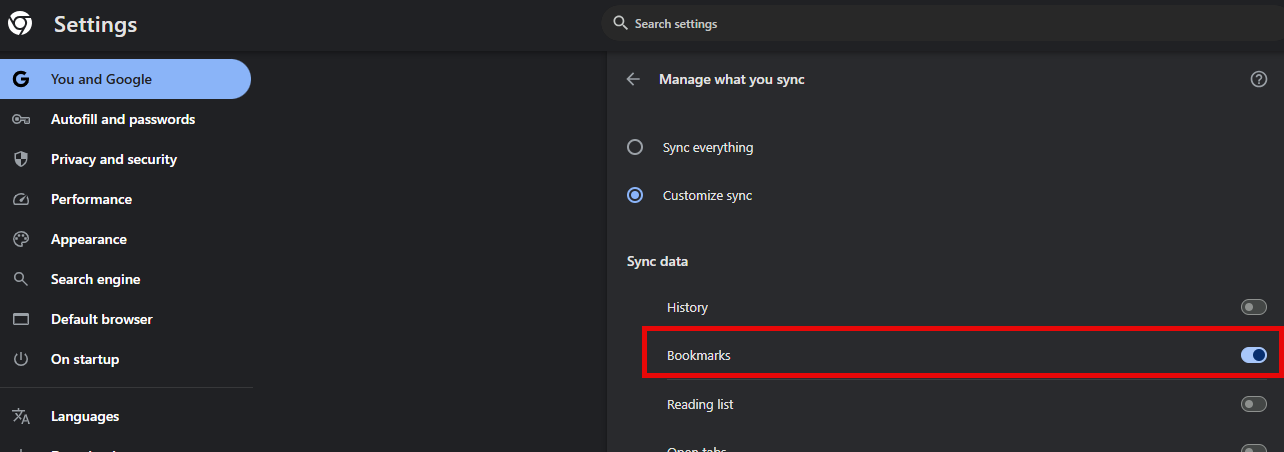
- Favorites will now be displayed on all devices in Chrome if they are logged in with the Bellevue account.
-> It is not absolutely necessary to use the Bellevue account.
Import favorites from backup
Favorites can also be imported from a previously created backup. Bellevue backs up all favorites (for Edge and Chrome) weekly to drive H:\ on the Citrix Workplace (H:\z_bellevue_it-backup). Instructions on how to import favorites can easily be found online.
