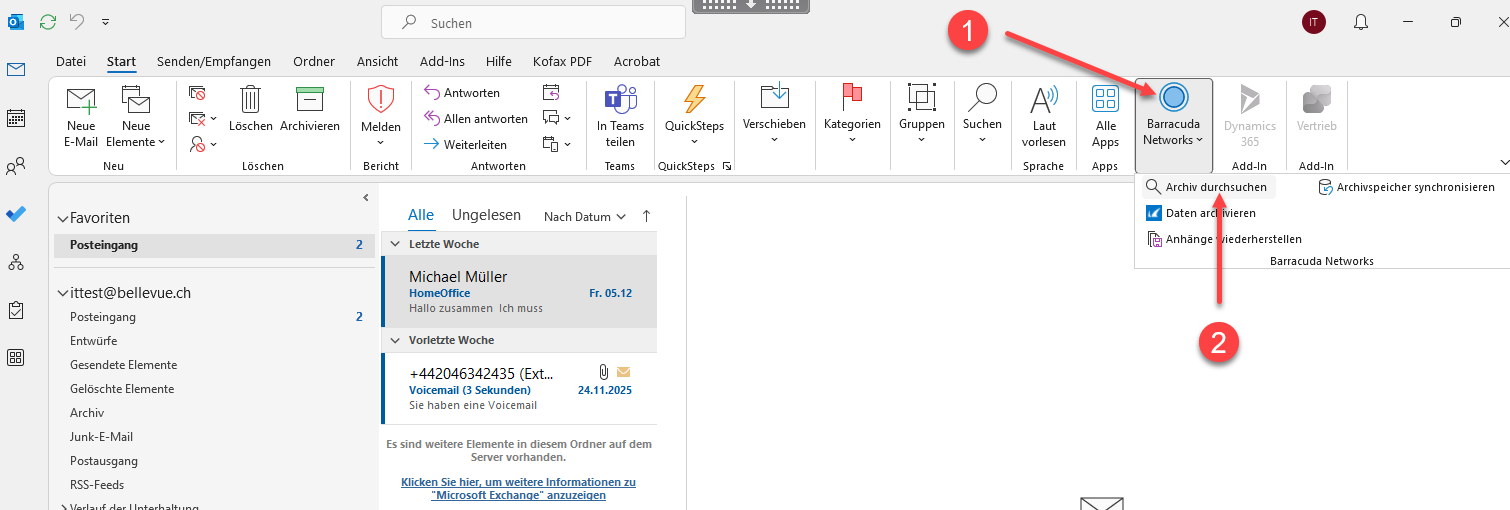
Barracuda Email Archive Multi Factor

How can I set up multifactor authentication for Barracuda email archiving?
- Make sure you have the Microsoft Authenticator installed on your mobile phone (same app as for 2-factor login to Citrix)
- Open a browser within the Bellevue Workplace and go to https://sso.barracuda.com/u/login and select "Sign in with Microsoft":
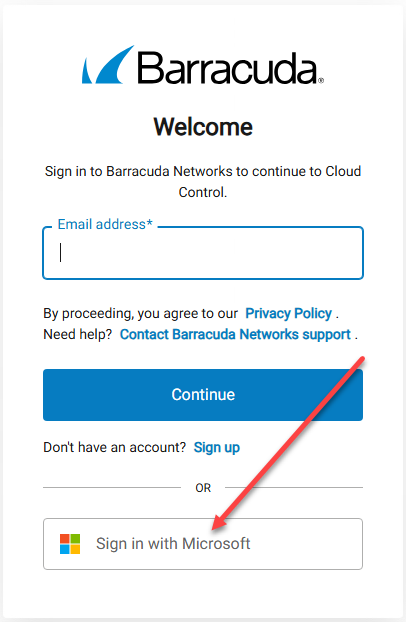
-> After that, you may need to enter your Bellevue email address and password and continue.
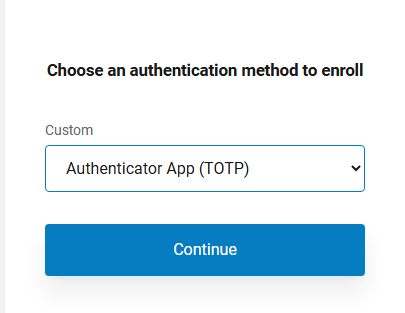
- Select the suggested option (Authenticator App (TOTP)):
- Open the Microsoft Authenticator app on your mobile phone and create a new account -> +
Select work or school account and scan the QR code from the website, then add the information you received from Microsoft Authenticator and a name for your mobile device: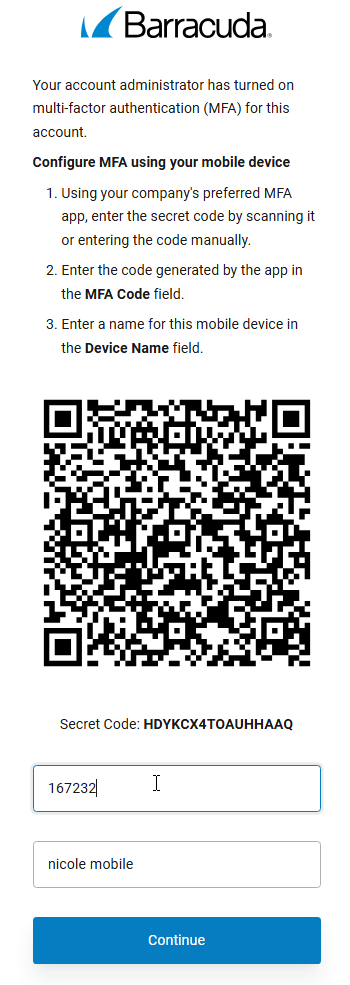
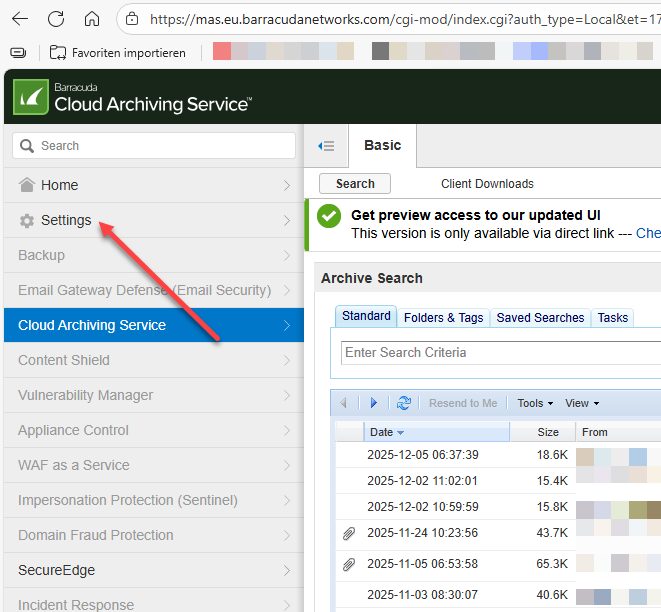
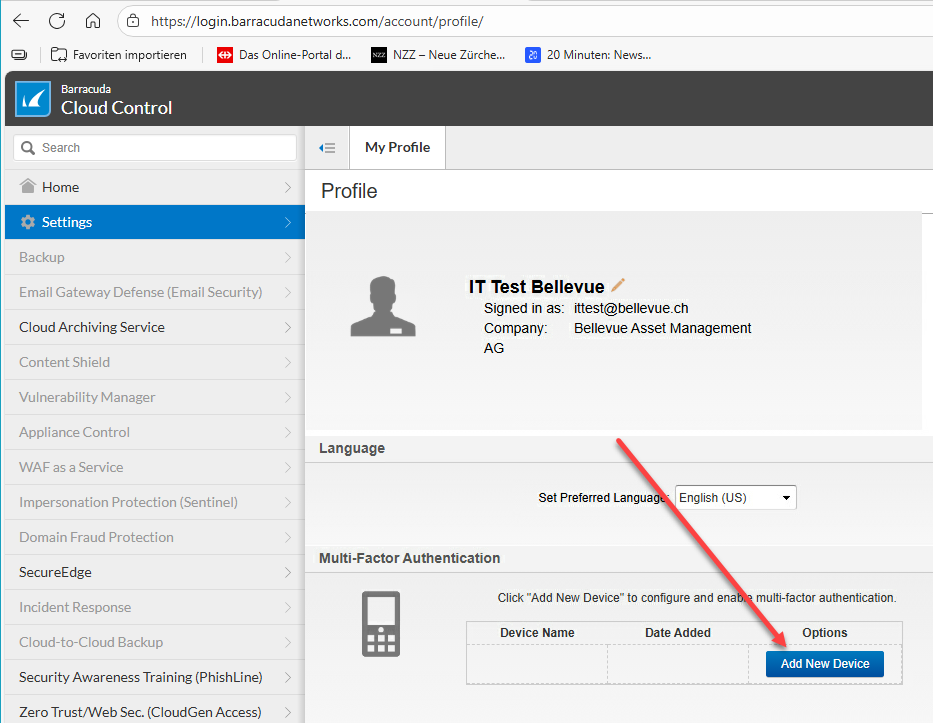
- Within the Barracuda Portal, go to "Settings". There your multi-factor device will be listed and can be changed:
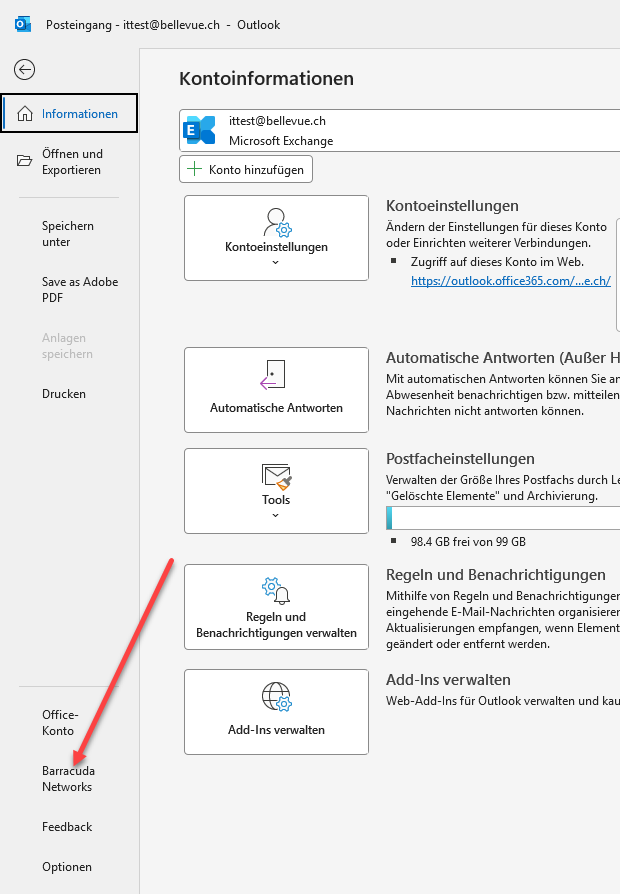
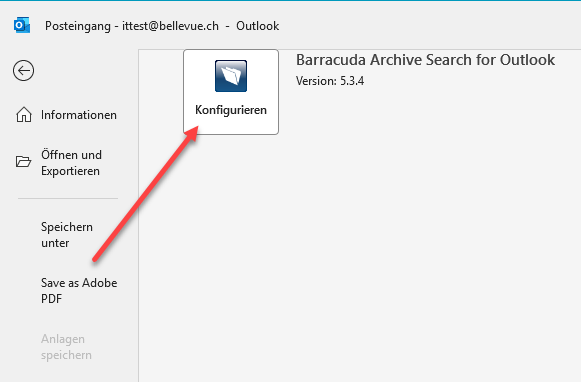
- Now open your Outlook and go to File (top right in Outlook) and then select "Barracuda Networks" followed by "Configure":
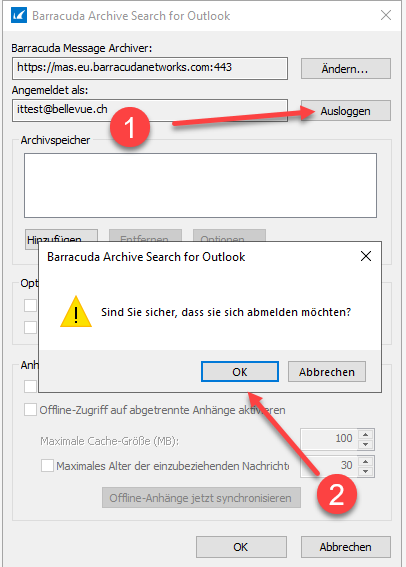
- Press "Log out" and "OK":
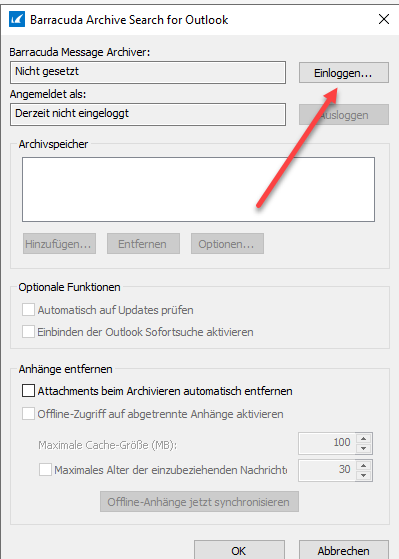
- Then click on "Log in":
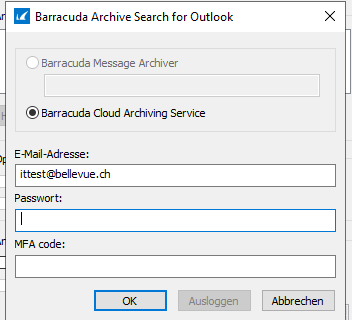
- Enter your email address and Bellevue password, followed by your MFA code:
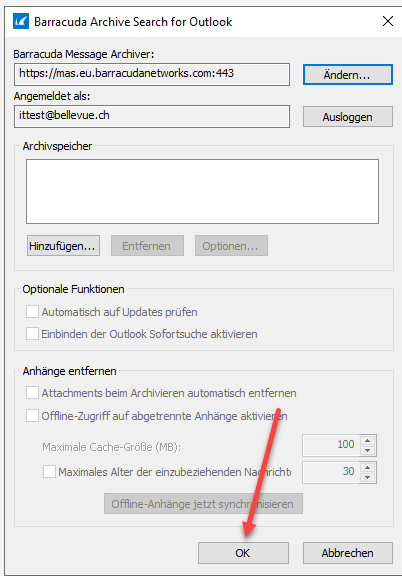
- Close the window with "OK" and return to Outlook:
- The best thing to do afterwards is to immediately start a search in the Barracuda archive to check if access is working: