Windows 11 Basic Personalization (Optional)

You can customize your Windows notebook to suit your needs. Here are the most important settings:
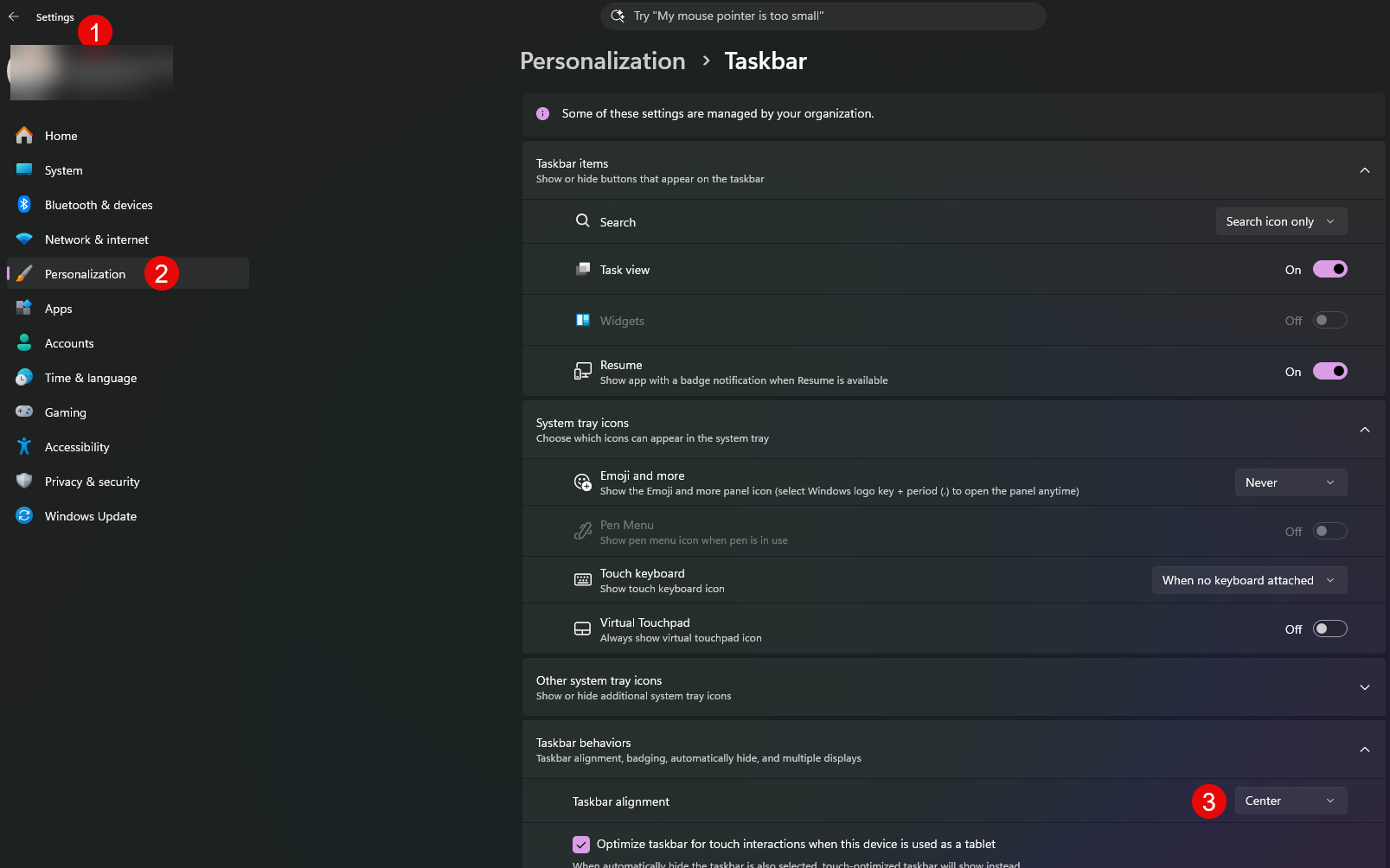
Taskbar Left-aligned
- Open Windows Settings (gear icon) and select "Personalization" on the left side.
- Select "Taskbar" and then "Taskbar behaviors"
- Switch option from "Center" to "Left"
Change display zoom
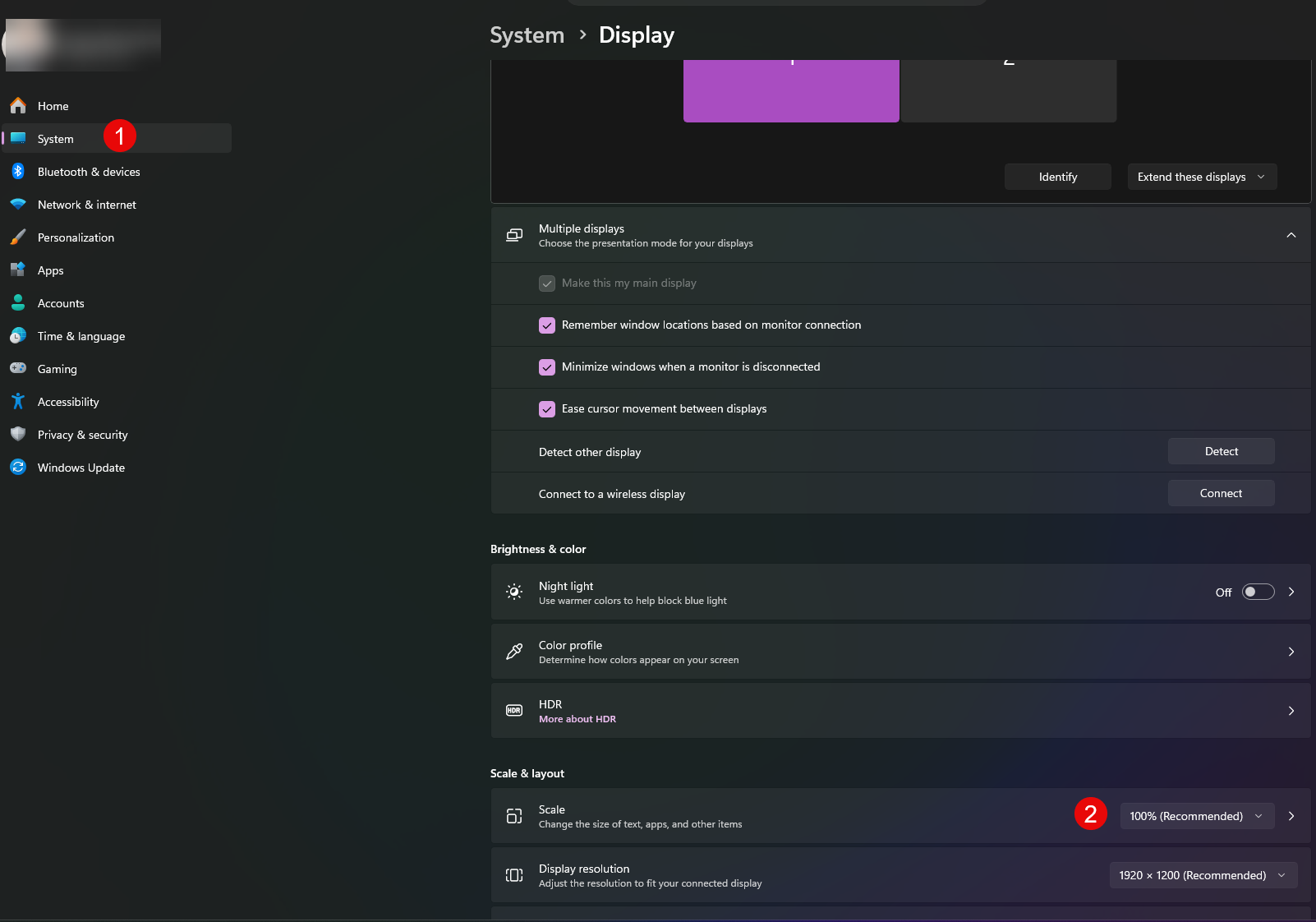
- Open Windows Settings (gear icon) and select "System" on the left side.
- Select "Display" and increase/decrease the percentage under "Scale" as needed.
Sleep mode vs. Hibernate mode
In addition to a complete "shutdown", where all applications are closed and the computer is switched off, you can choose between "power saving" and "hibernation".
- Hibernation: The computer remains switched on. Documents are not saved. Restarting is faster than from power saving mode.
- Energy saving: The current state of applications and documents is saved, and the computer is shut down. Restarting takes longer than in sleep mode.
To switch between sleep mode and hibernate mode:
- Start button - "Settings" - "System" (1) - "Power & Battery" (2) - "Shut lid, power switch and power saving button" (3)
- Make sure to adjust the settings for the power cable and battery (4 and 5).
Bellevue IT recommends the setting as shown below (4+5):
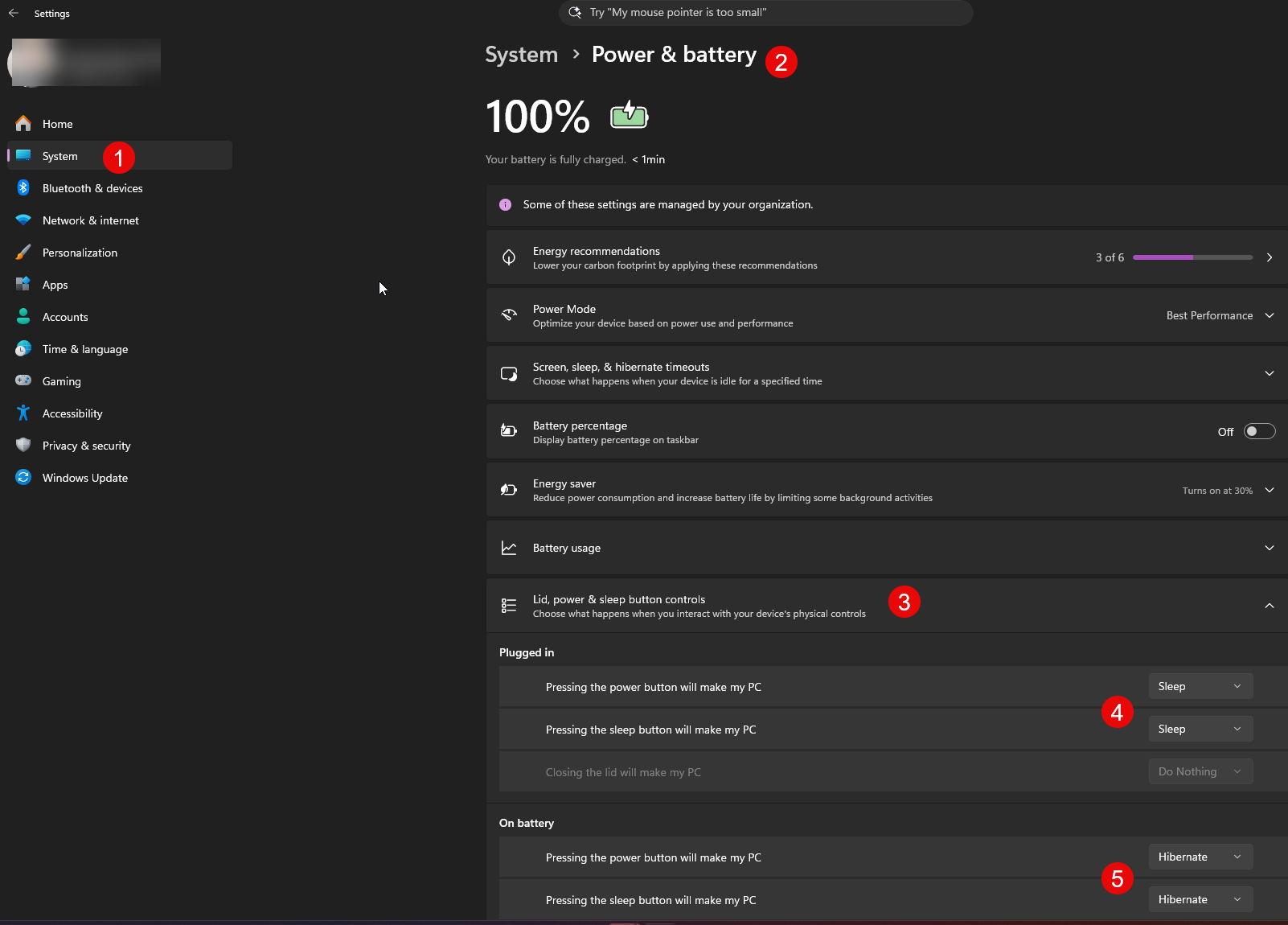
Note: Bellevue laptops do not have a "Sleep Button"!
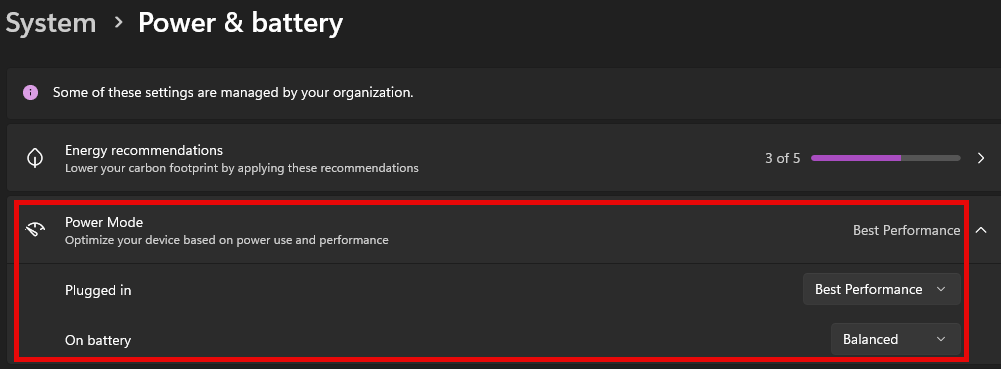
Additionally, we recommend making the following adjustments to properly utilize the laptop's performance.