Setting up the MAC device (after first login)

After installing macOS, the following tasks must be performed once:
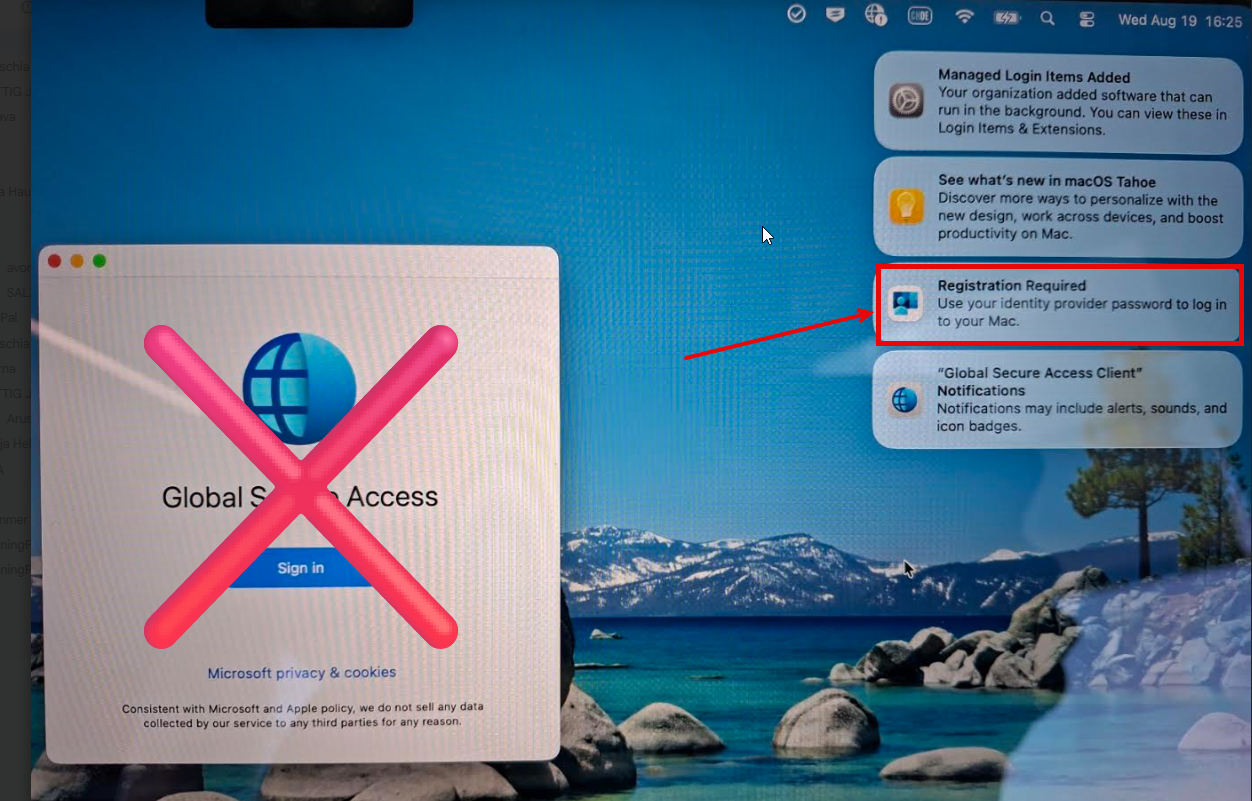
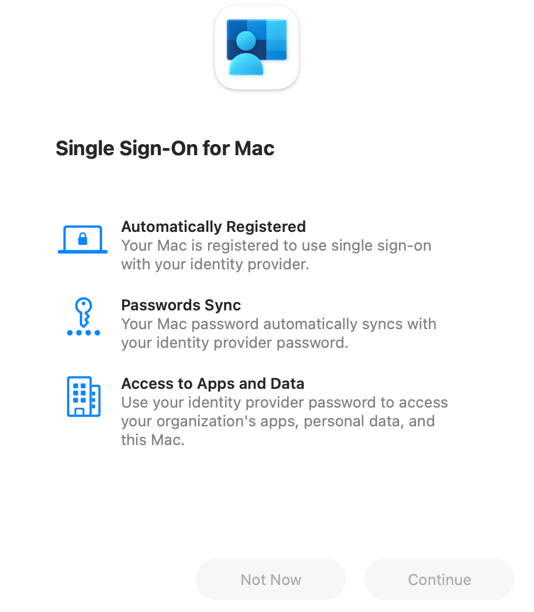
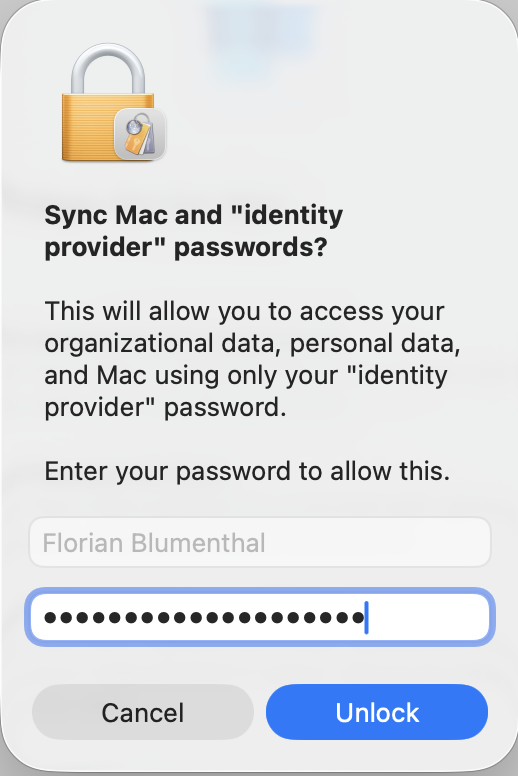
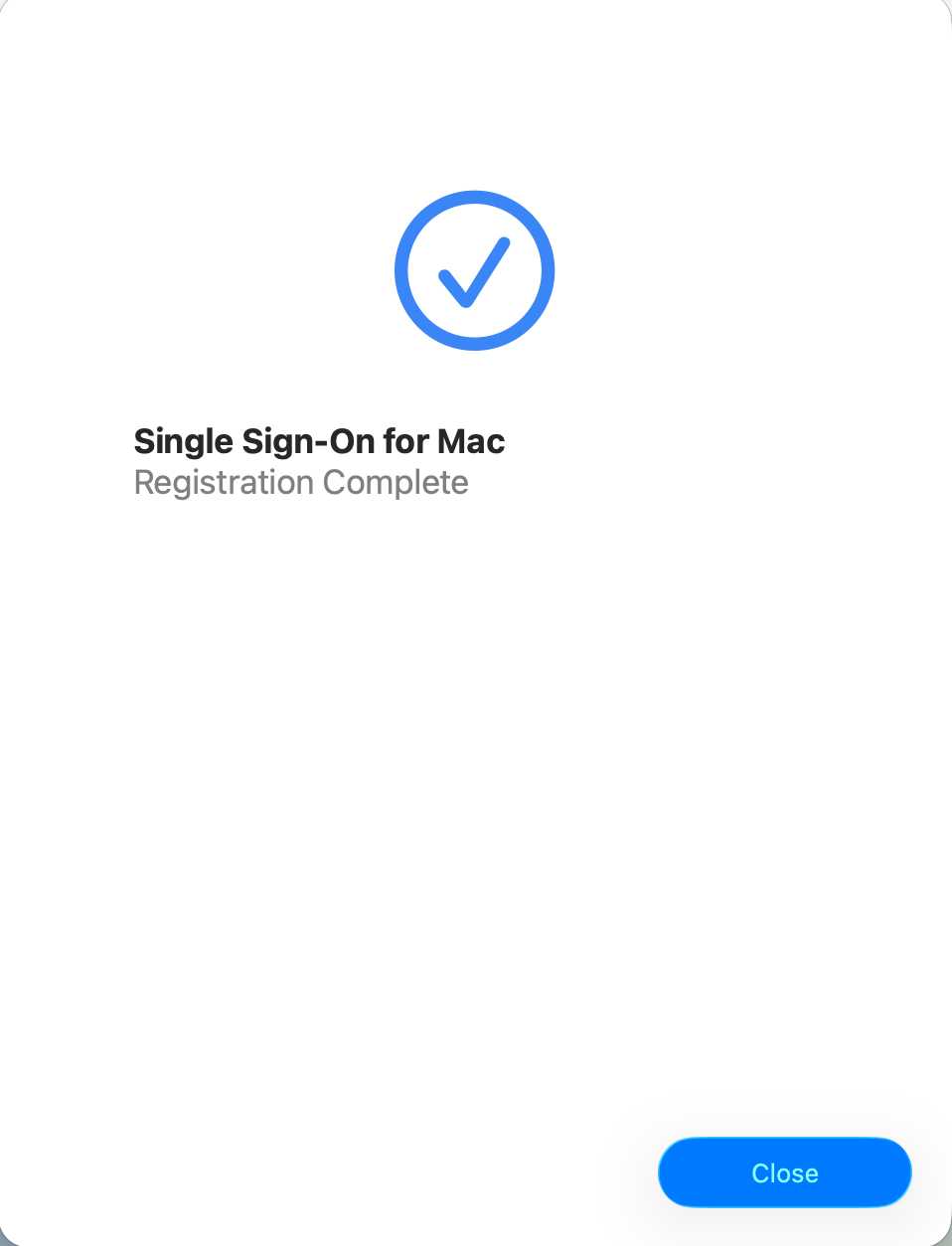
- As a very first step, register for the "Microsoft Intune Company Portal" using the Bellevue login (message in the upper right corner):
 |  |  |  |
- Then restart the device and check if "Global Secure Gateway" is connected (the checkmark must be visible):

- After restarting, you can also begin installing additional applications from the Package Hub. If the Package Hub is not visible, please wait. It can take up to an hour for the Mac Dock to display correctly!
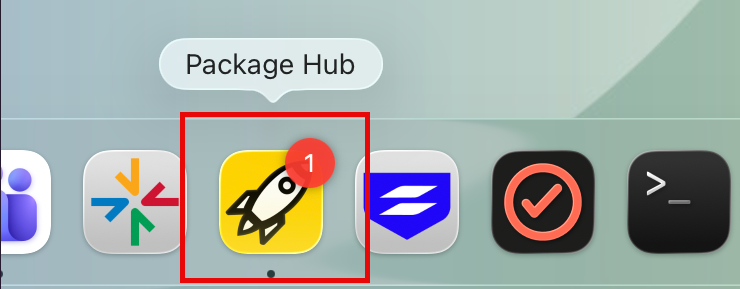
We recommend installing the following applications from the Package Hub:
- Power PDF (-> Tungston PDF Converter)
- Snagit (->Screenshooting Tool)
Multiple programs can be installed simultaneously.
The following programs are not available on MacOS:
- Bloomberg + Bloomberg Office Tools
- Barracuda Outlook Archiver Add-In
- Notepad++
- Bloomberg + Bloomberg Office Tools
- Barracuda Outlook Archiver Add-In
- Notepad++
If additional applications are needed, they can be requested via AdminByRequest.
- Install the company printer via System Settings - Printers & Scanners.
- Connecting Bellevue network drives:
- The keyboard shortcut "Command + K" opens the connection window.
- Enter the following parameters (copy/paste):
For M:\, R:\, T:\, V:\, X: -> smb://bbsvfs01
For L:\, O:\ -> smb:/bbsvfs02
For H: (Homedrive) -> smb:/bbsvfshd01 -> select "Home"
- Enter and save your Bellevue login information
- Add folder to Finder using drag and drop
- Open System Settings -> Open at Login -> Open at Login (+) -> Select Mapped Drive - Self-monitoring of all basic functions:
Are my browser favorites present (synchronized)? If no, import favorites.
Yes No
Is my Outlook signature correct? If not, change my Outlook signature.
Yes No
Are there any bugs or updates in the Package Hub?
Yes No
Important information
- The "Package Hub" (in the taskbar) is the central platform for managing your applications (installing, uninstalling, updating). Please let us know if an application is missing.
- Please remember to restart your device weekly to install important security updates. Since updates can take some time to install, we recommend restarting after a workday when the device is plugged into a power source.
- You are always connected to the Bellevue network provided by "Microsoft Global Secure Access", regardless of whether your device is connected via cable (with docking station) or via Wi-Fi/hotspot.
- Adobe Acrobat Reader is no longer used. PDF files can be opened with any browser (Edge, Chrome).
- Only files stored on your home drive H:\, company drives (e.g., L:\), SharePoint, or OneDrive will be available on the new device! If you have stored data in other locations, please follow this process: Review – Clean up – Move (to a suitable location).
- USB devices such as memory sticks and external hard drives are not allowed and will be blocked.
- Your device is labelled "Bellevue - %Username%" on the underside.
- You can find more tips and tricks in the Helpdocs under the category " Native Workplace ".
